Screenshot gallery
A curated tour of the AIFactory portal, captured from the live deployment at
aifactory.freundcloud.org.uk. These are real projects and real tasks — both a
successful run and one that ended in errors — not mock-ups.
Refresh these with
npm -w apps/frontend-web run capture-screenshots(drives the live portal via Playwright; seescripts/capture-screenshots.ts).
Getting in
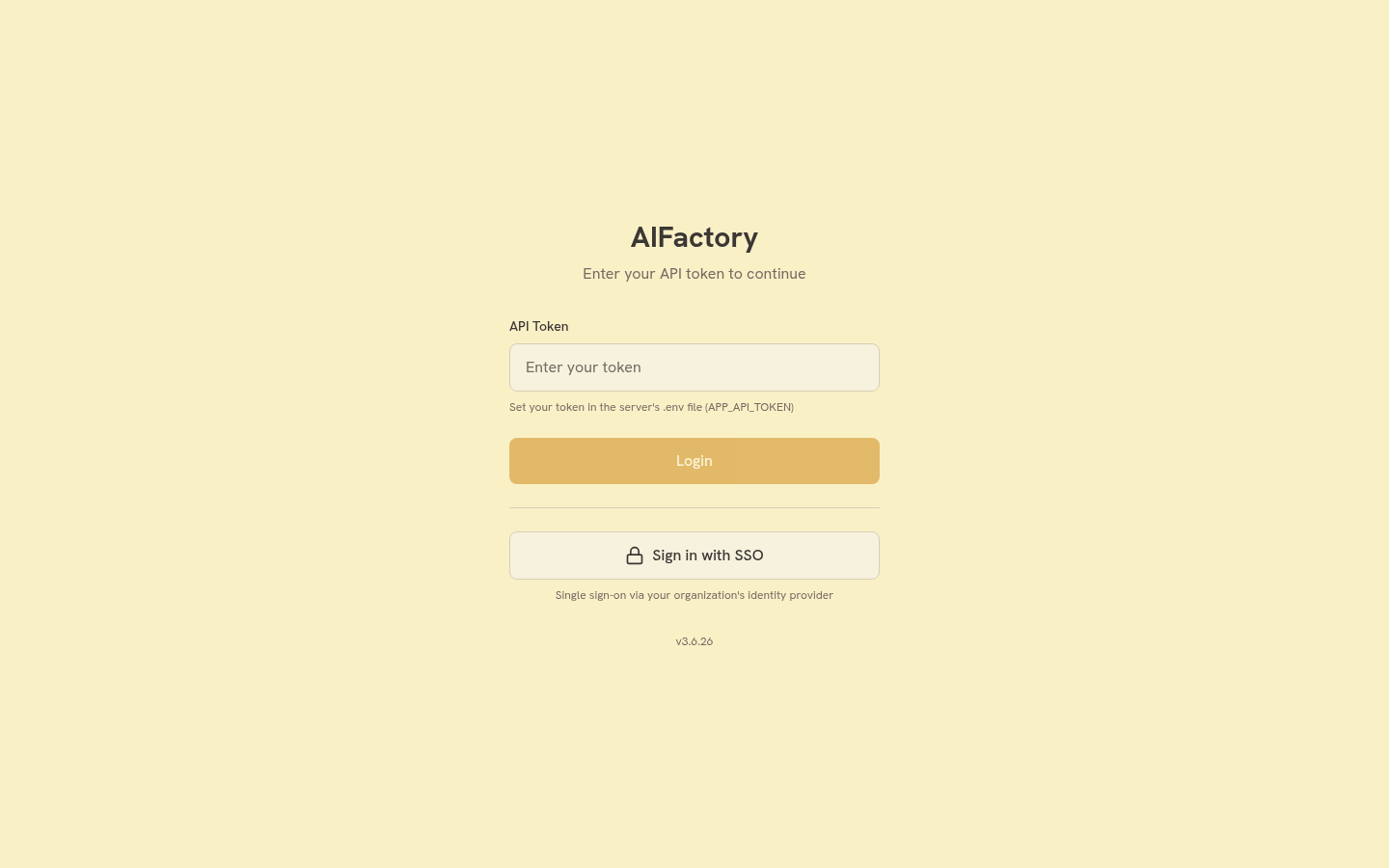
The portal authenticates with an API token, or with single sign-on via your organisation's identity provider.
The board
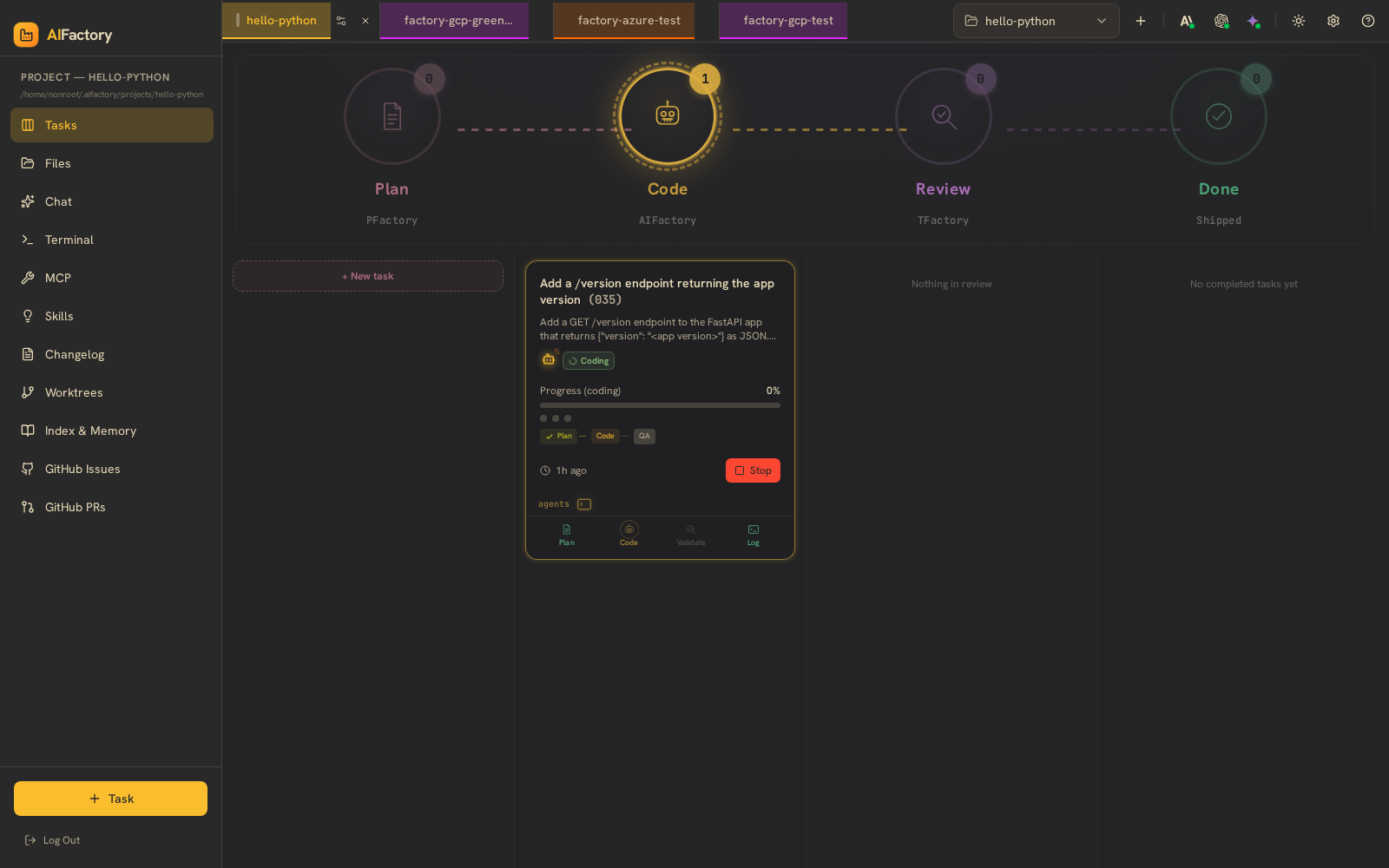
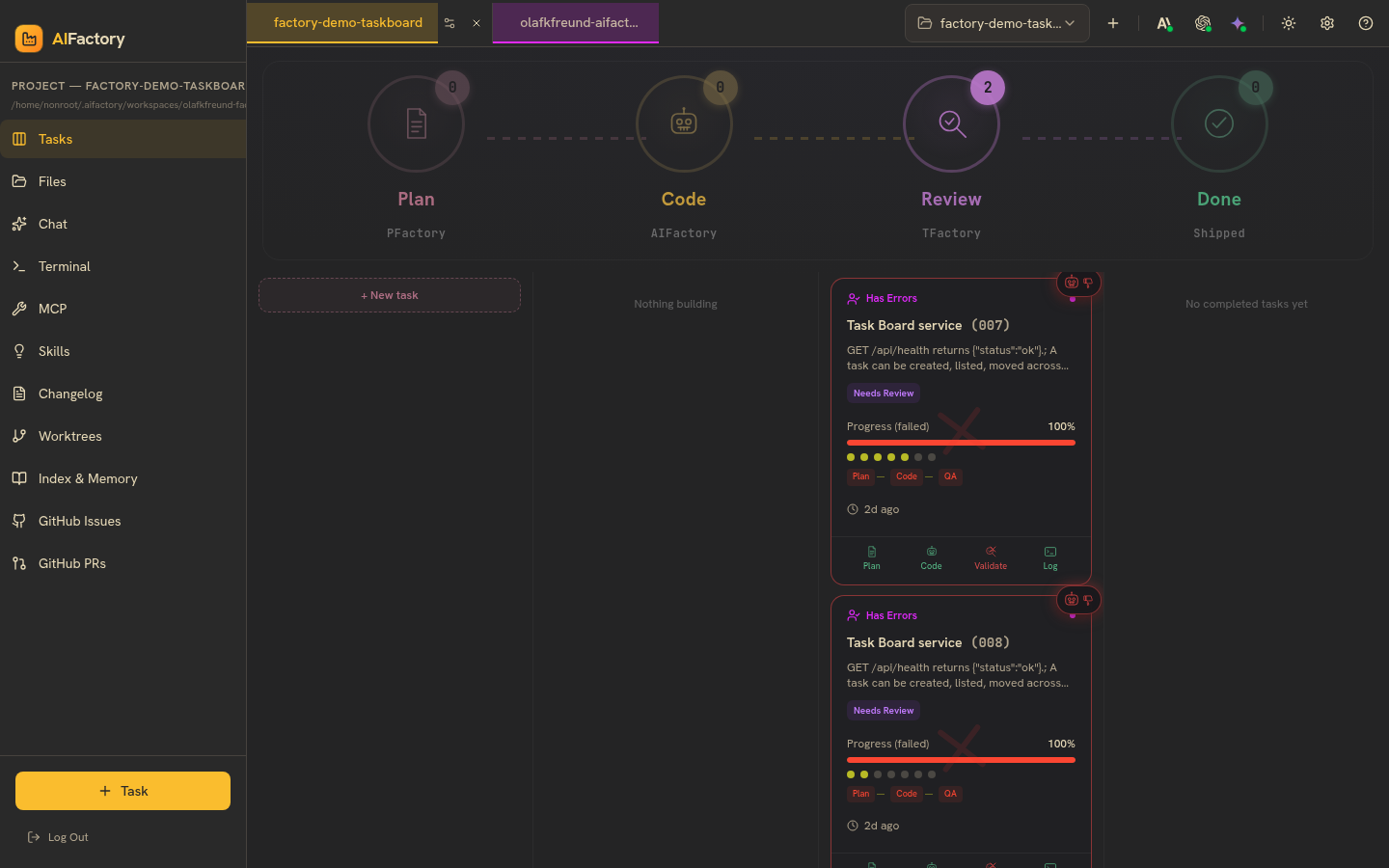
The kanban board lays a project's tasks across the four PARR lanes — Plan (PFactory), Code (AIFactory), Review (TFactory) and Done (shipped). Each card carries its phase, a progress bar, and the Plan / Code / Validate / Log controls.
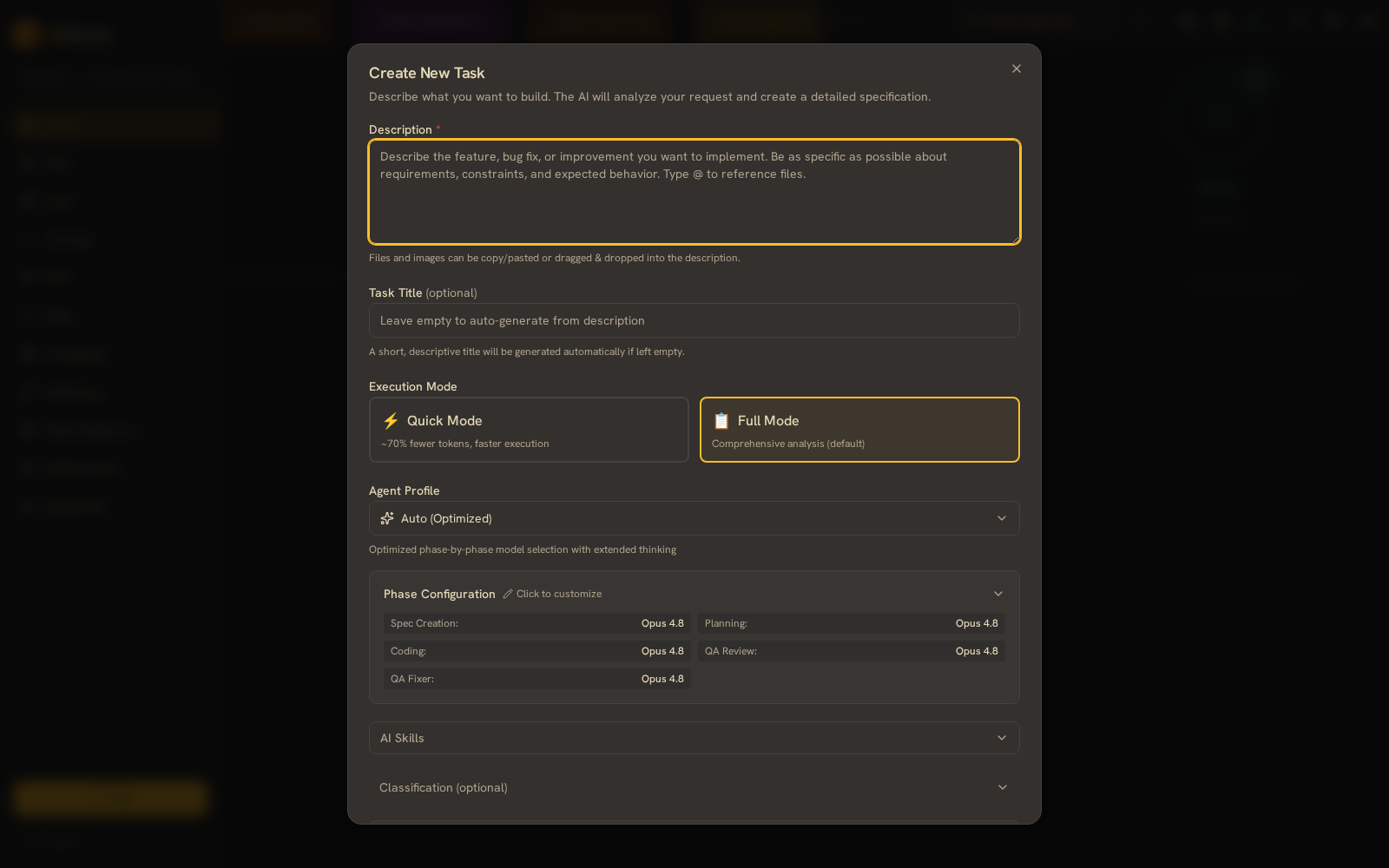
Creating a task is a single dialog: describe what you want in natural language
(you can @-reference files), optionally name it, and the planner takes it from
there.
A task, in detail
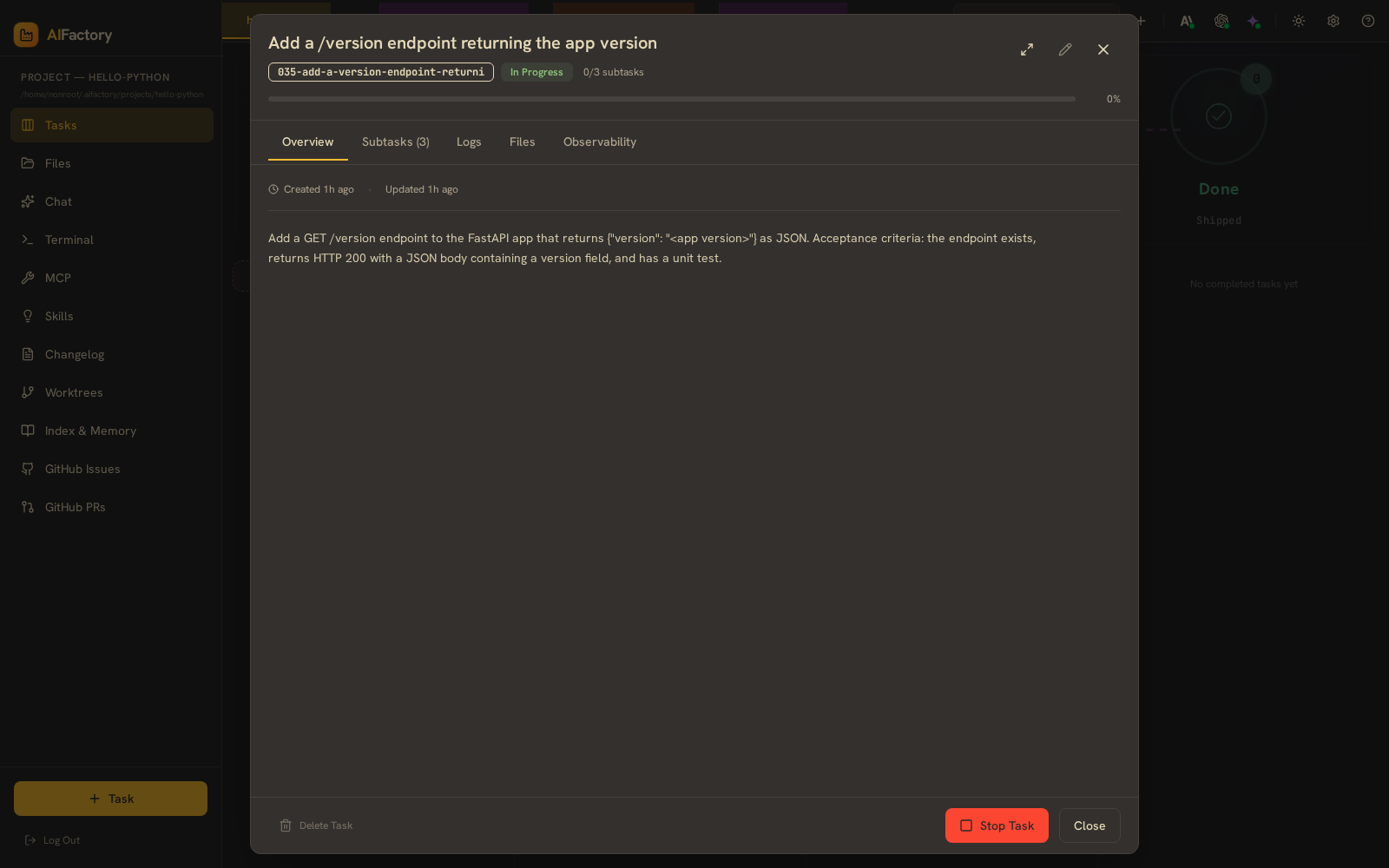
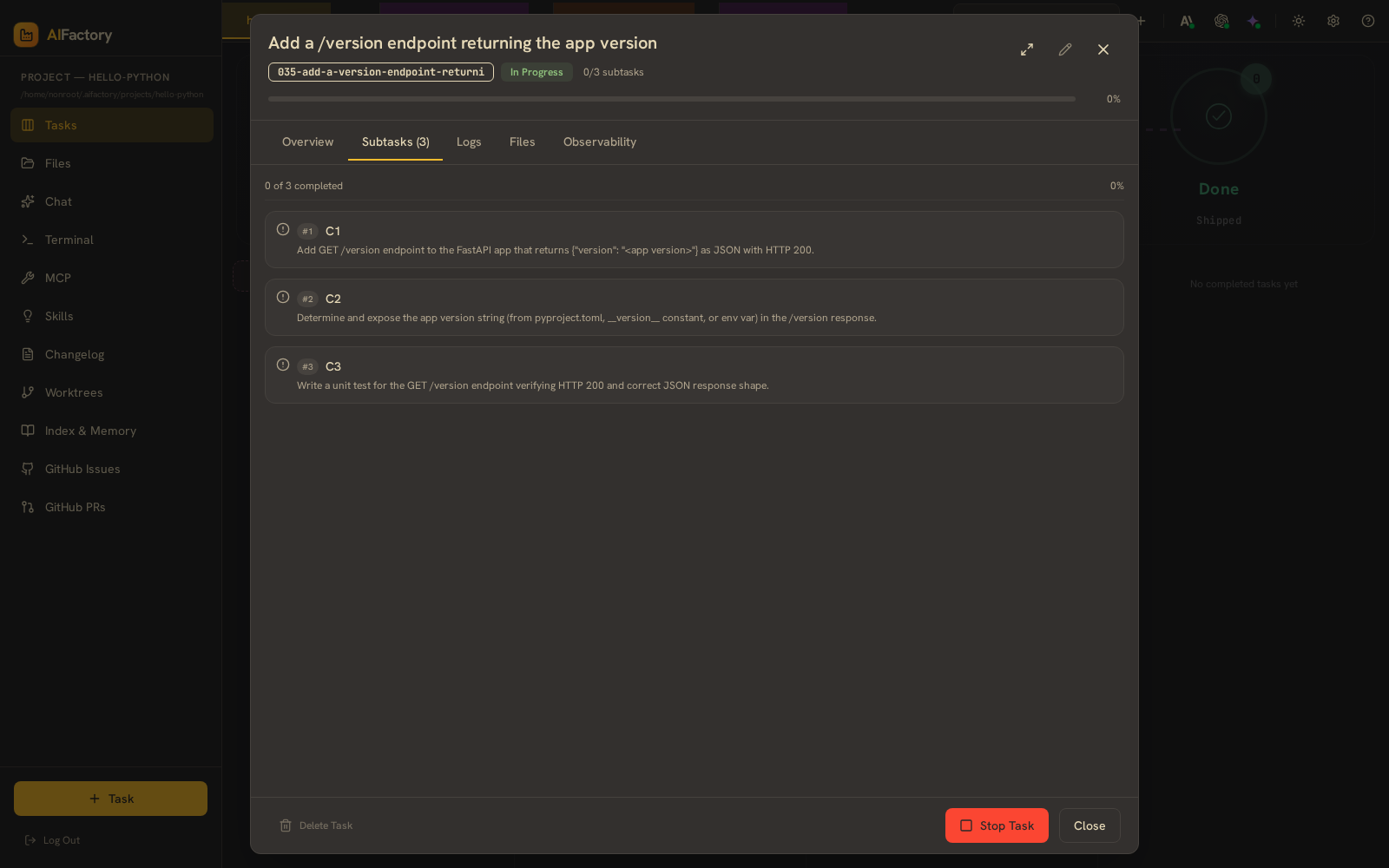
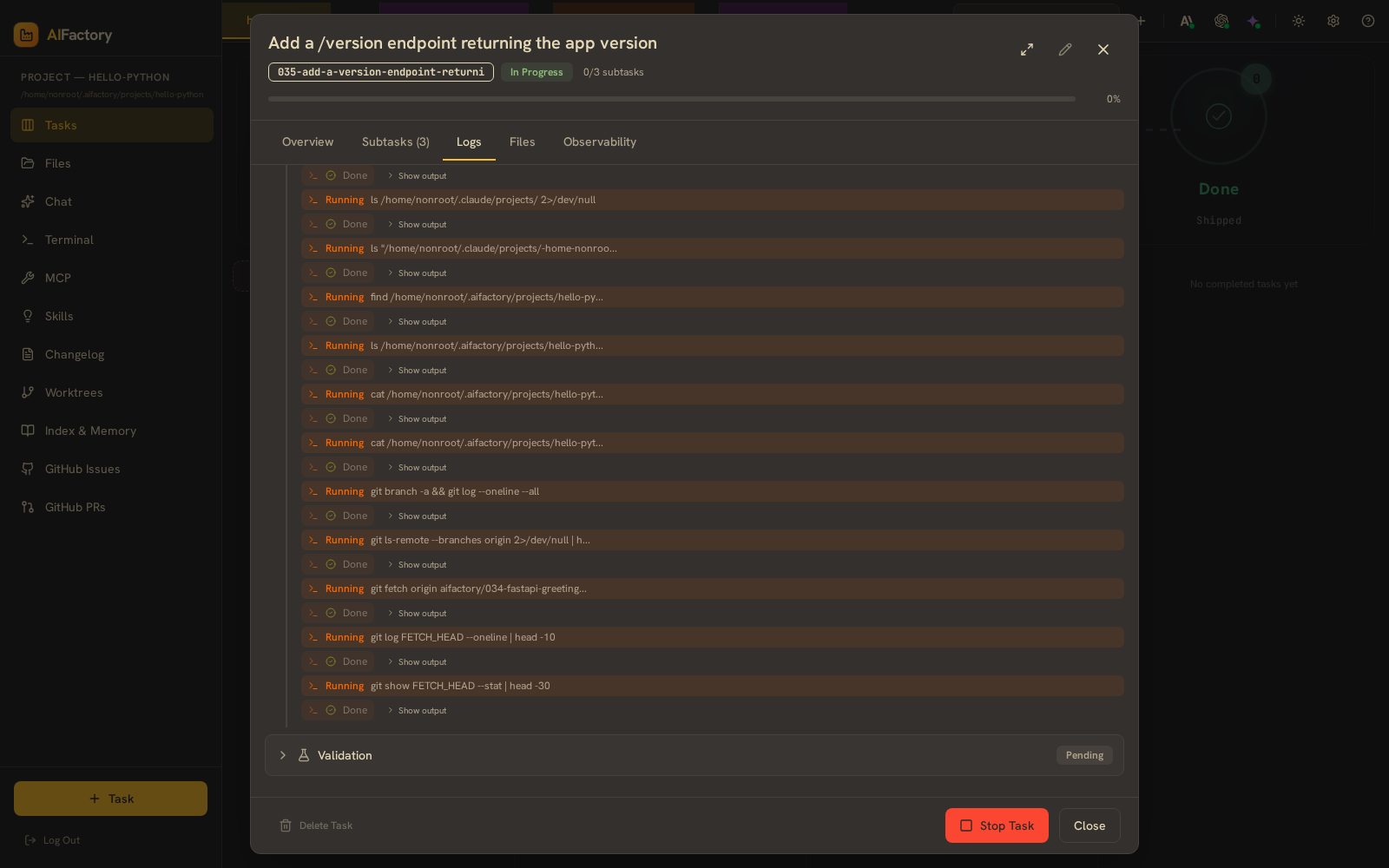
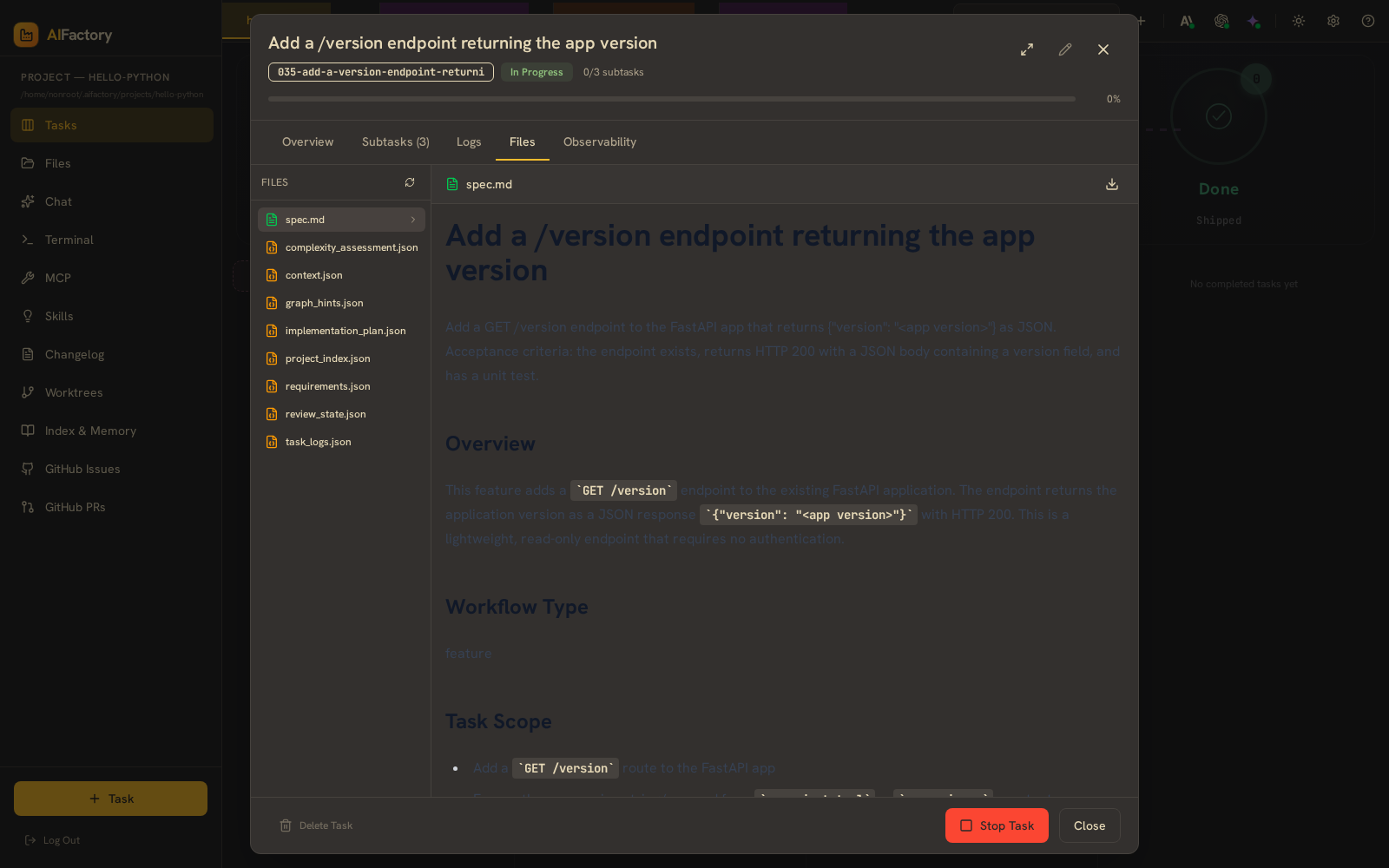
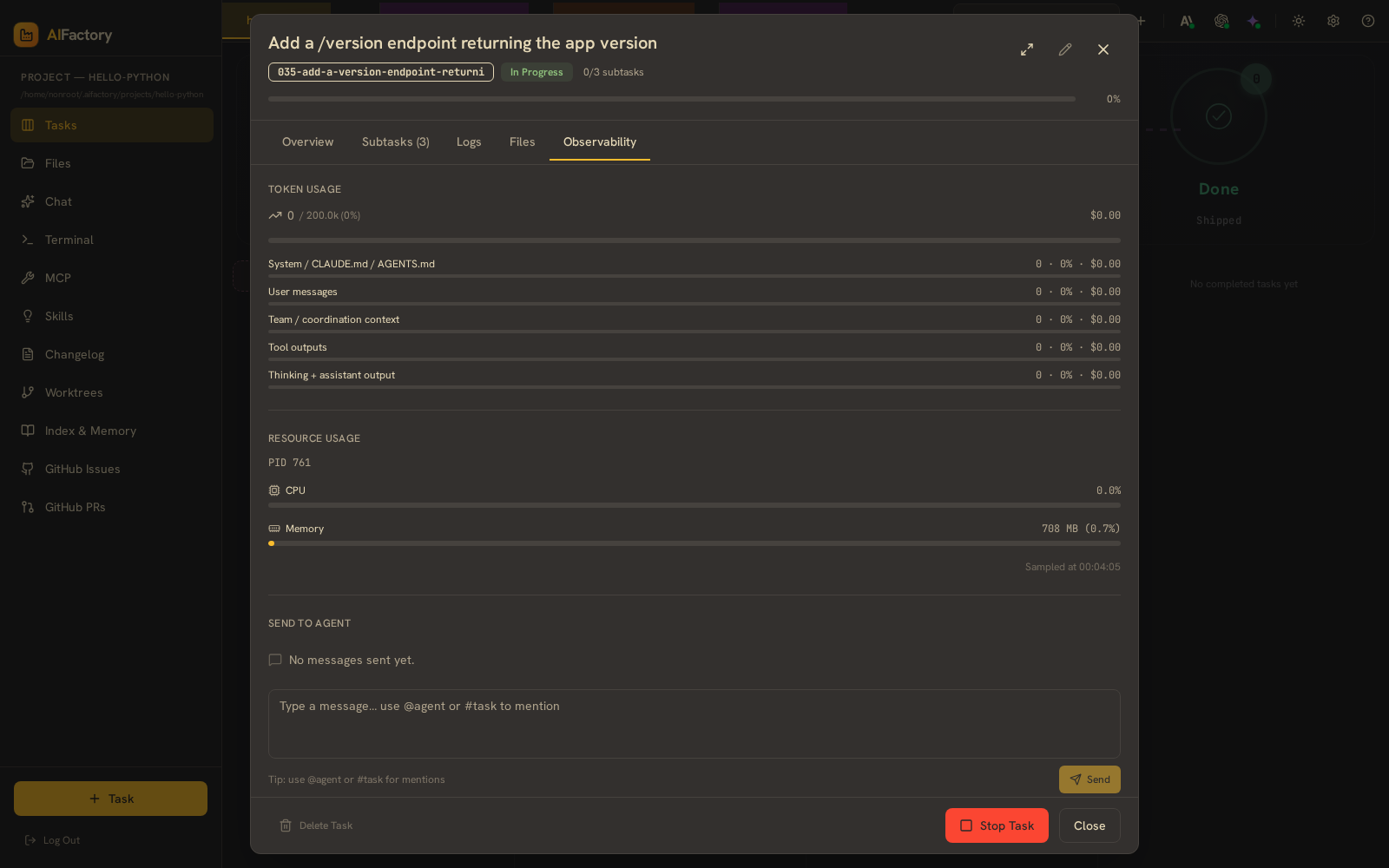
Opening a card gives you the full task: the spec on the Overview tab, the planner's Subtasks, streamed Logs, the changed Files, and an Observability tab.
The Subtasks tab is the implementation plan — file references and per-step status, reviewable and editable before any code is written.
Logs stream the agent's work as it happens.
Files shows what the run actually changed.
Observability breaks token usage down by category — system prompt, user messages, team/coordination context, tool outputs, thinking + assistant output — each with its own cost, plus resource usage and a direct "send to agent" channel.
When a run goes wrong
Not every run succeeds, and the board doesn't hide it. Tasks that hit problems carry a Has Errors badge and a failed progress bar.
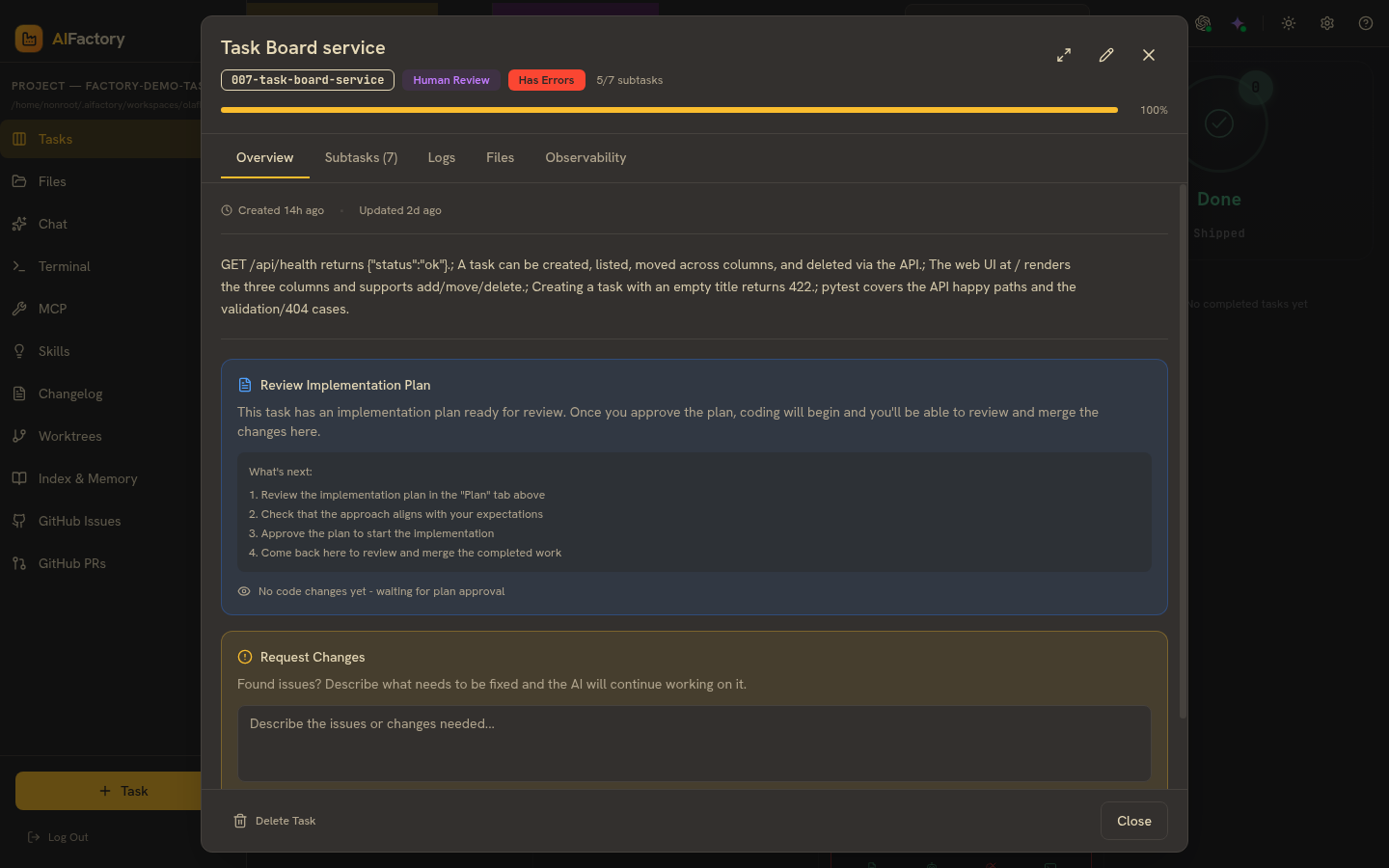
Open one and you get the same detail surface — here a task sitting at the Human Review gate with errors flagged, the plan-review panel, and a Request Changes box to hand corrections back to the agent.
Beyond the board
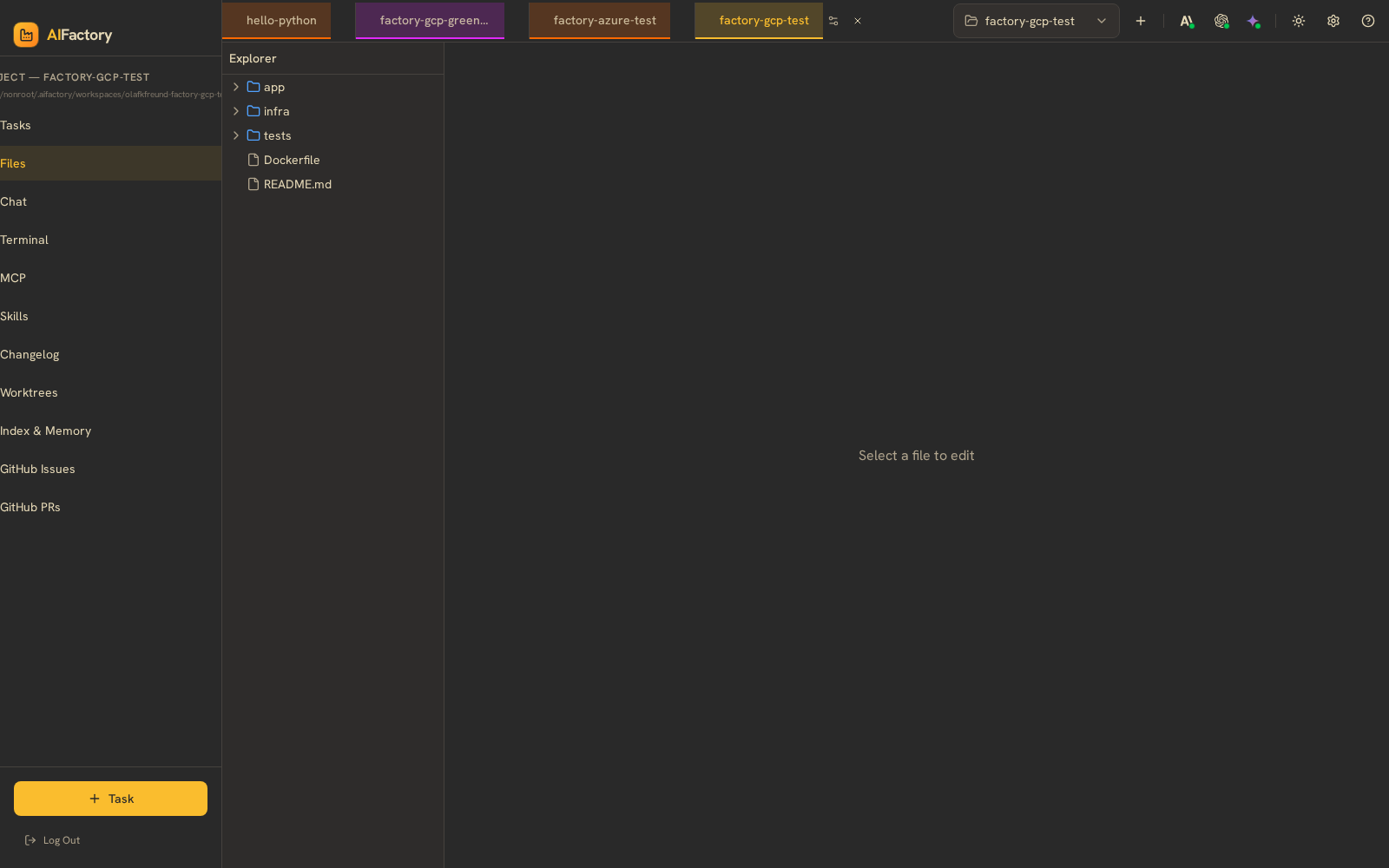
The portal is more than a kanban. The left rail carries the workspace tools.
The Files browser exposes the task's workspace.
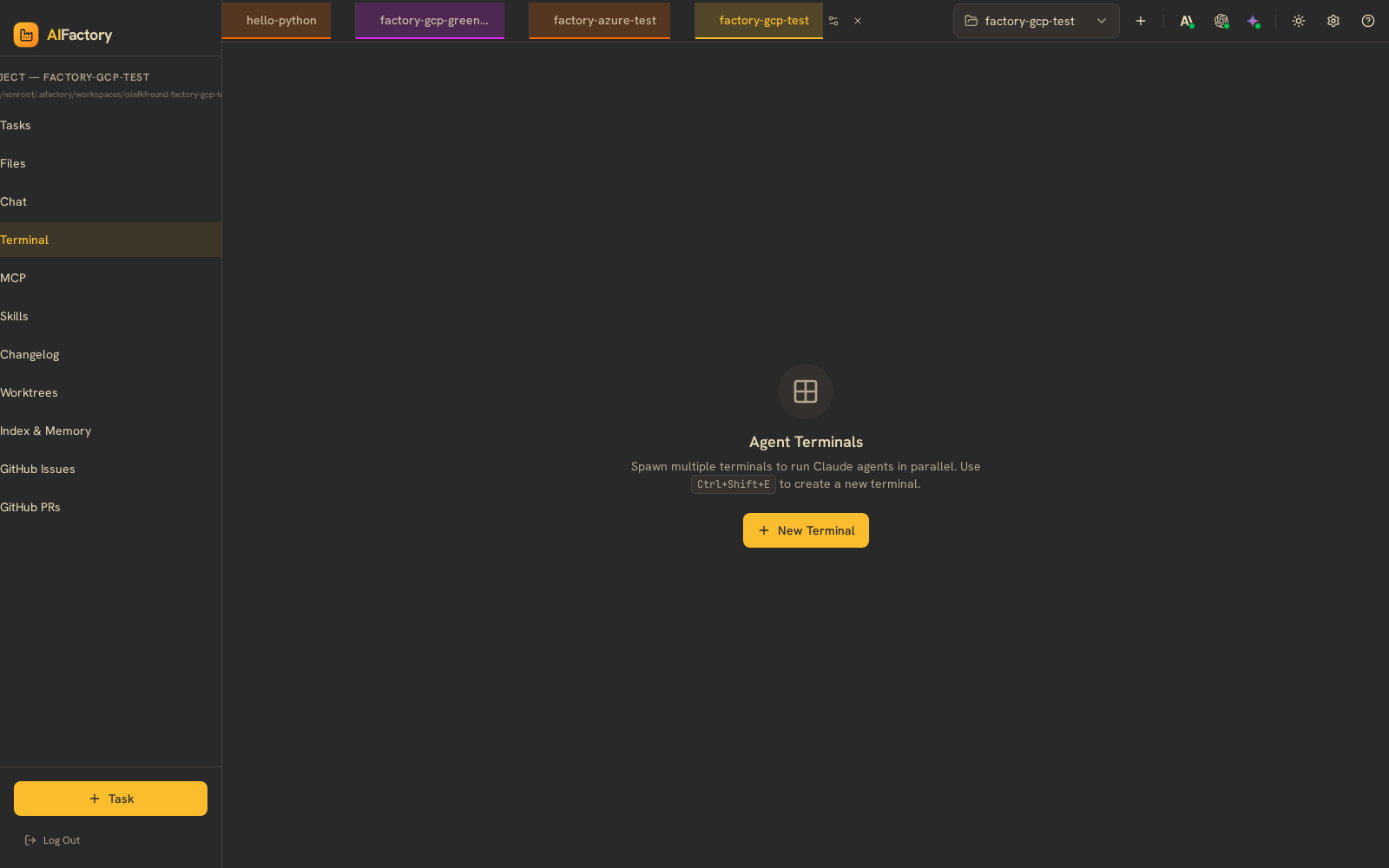
Agent Terminals spawn multiple terminals to run agents in parallel.
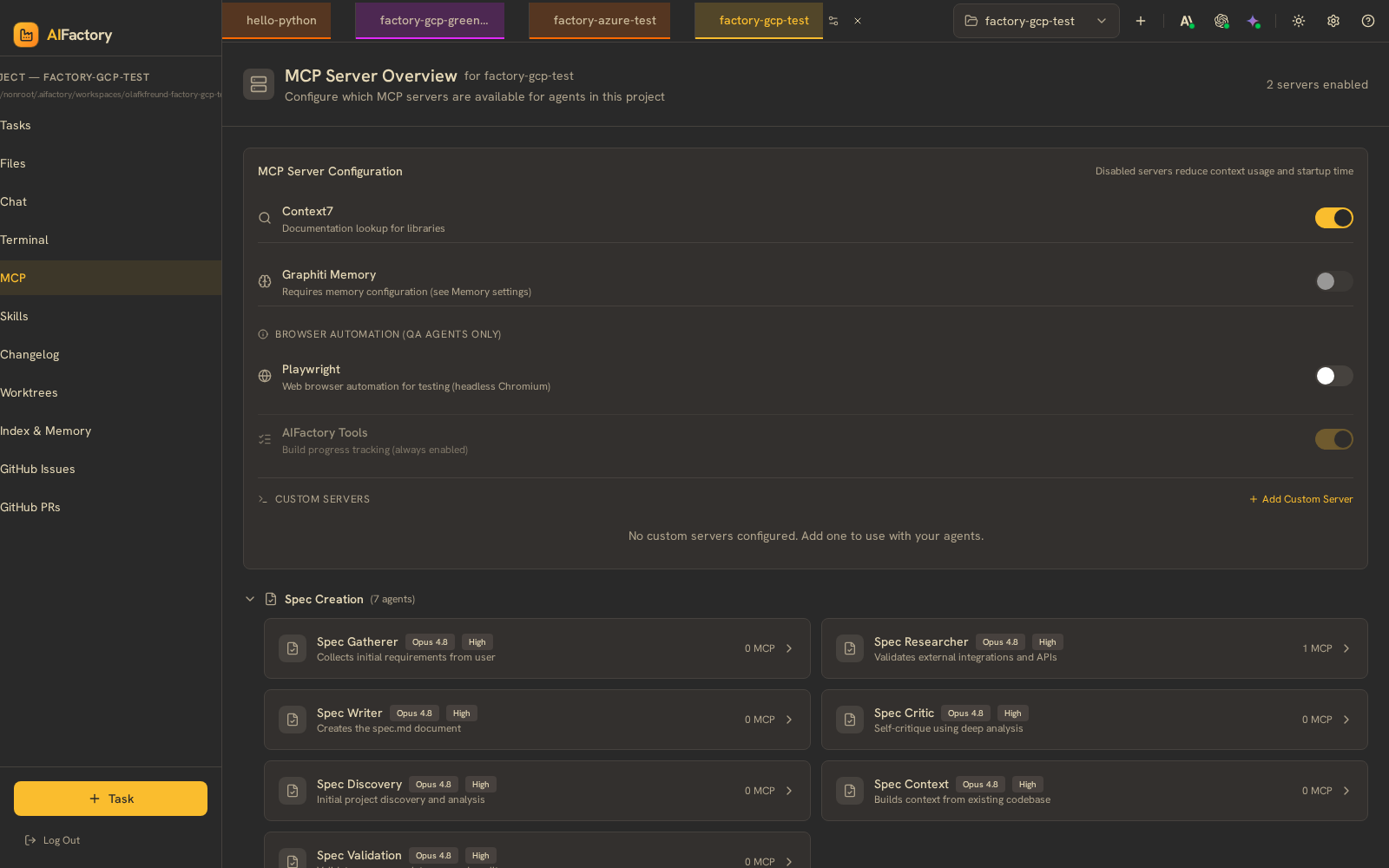
MCP lists the Model Context Protocol servers available to agents.
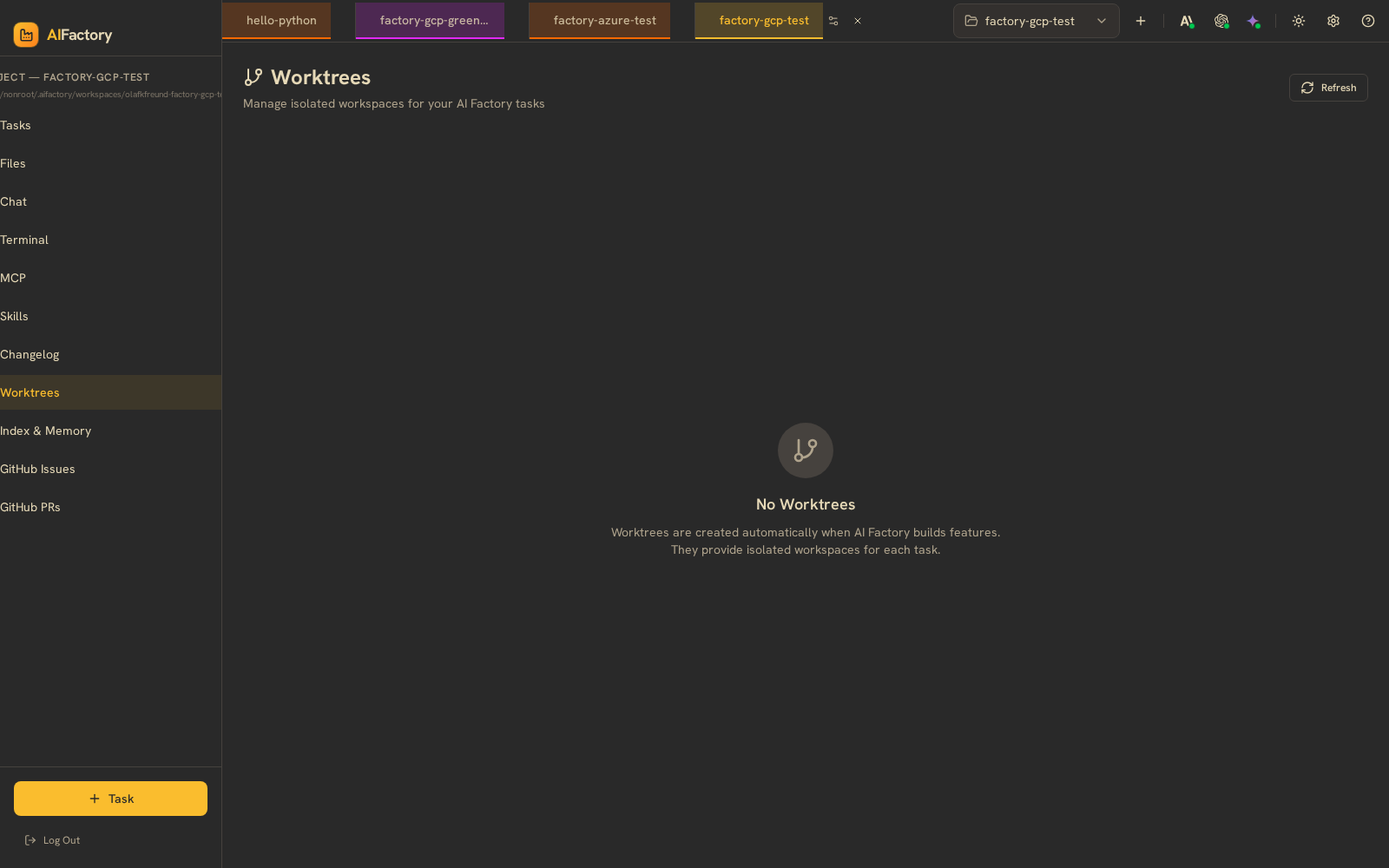
Worktrees tracks the git worktrees the build uses.
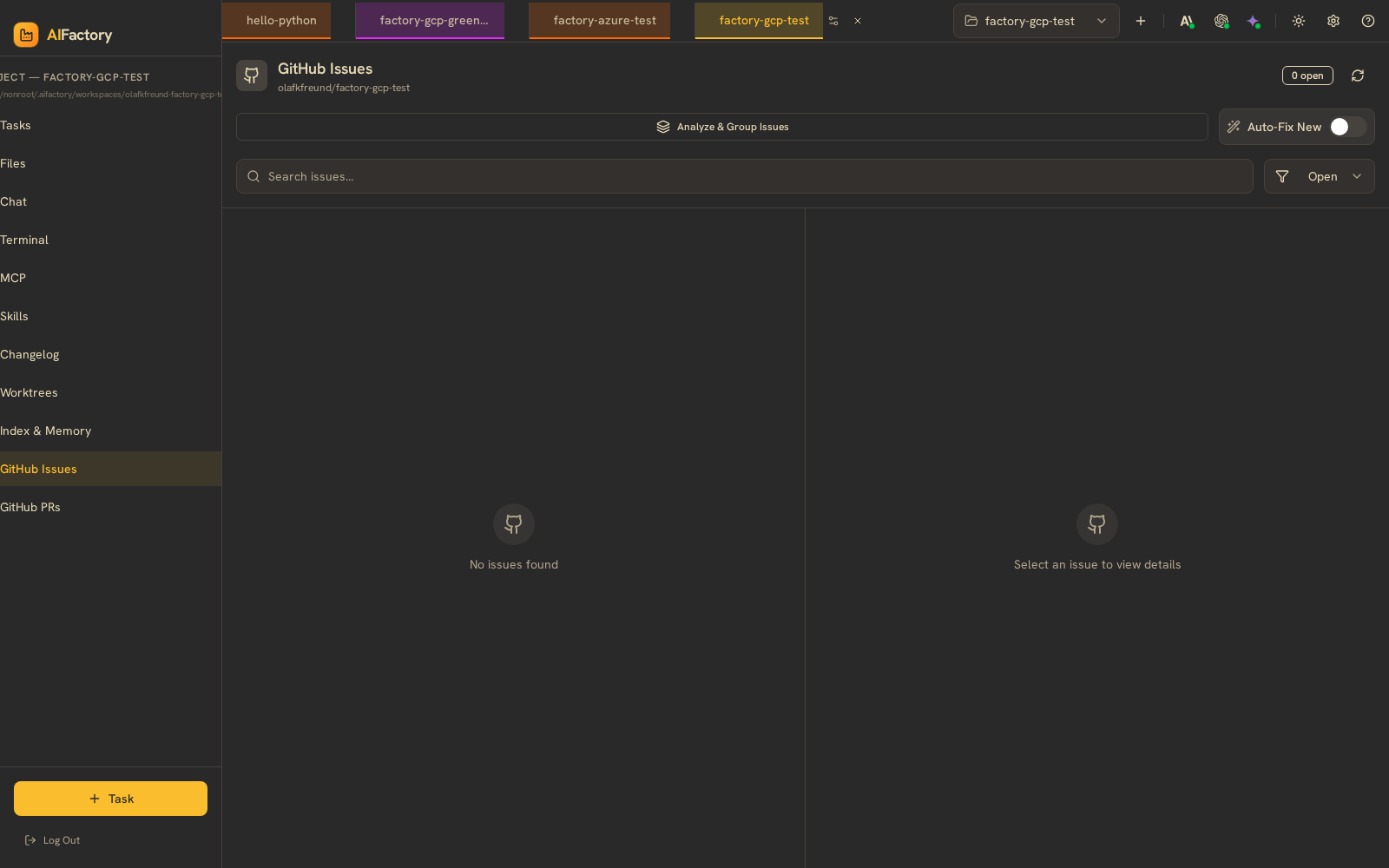
GitHub Issues syncs issues straight into the board.
Settings and providers
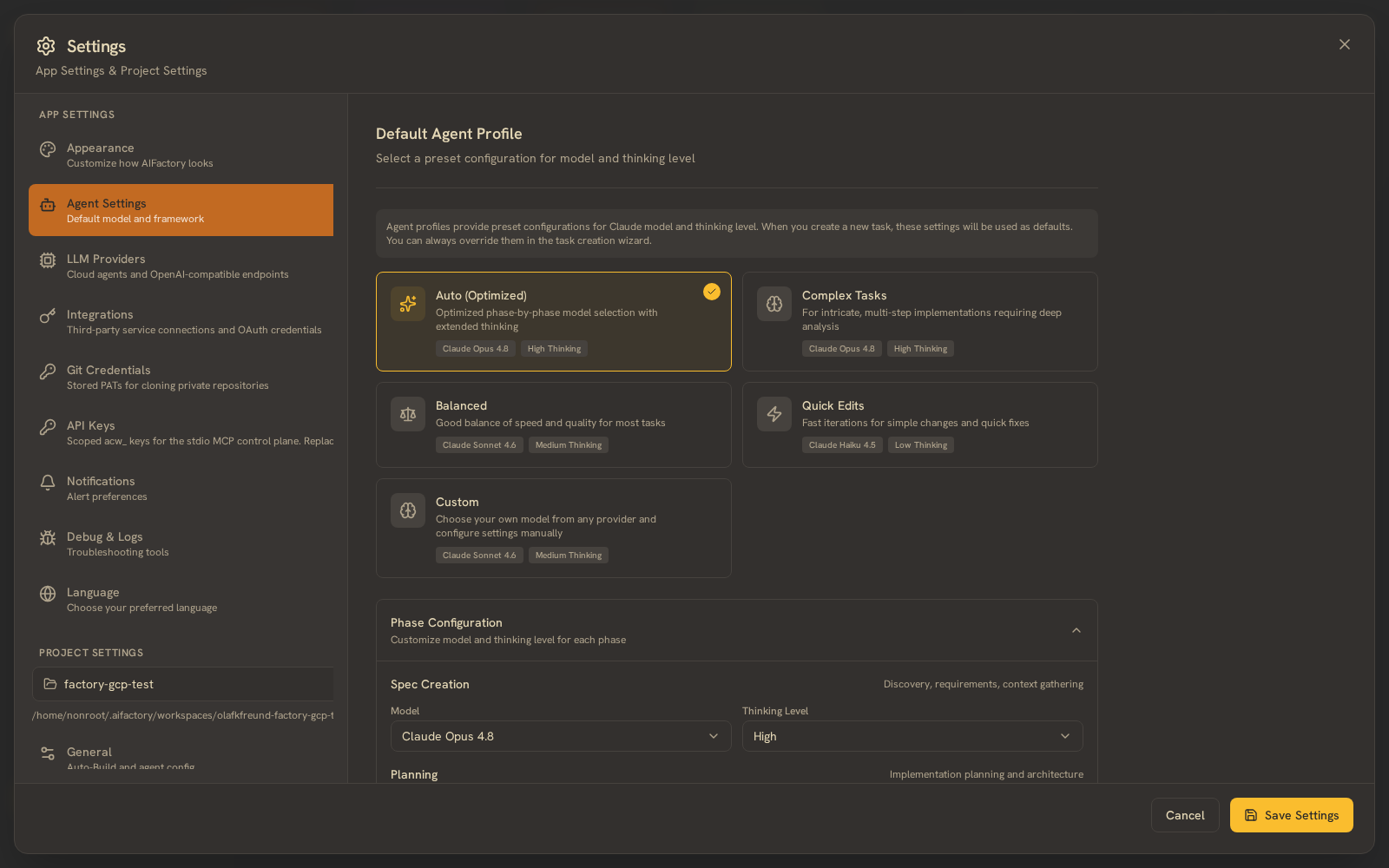
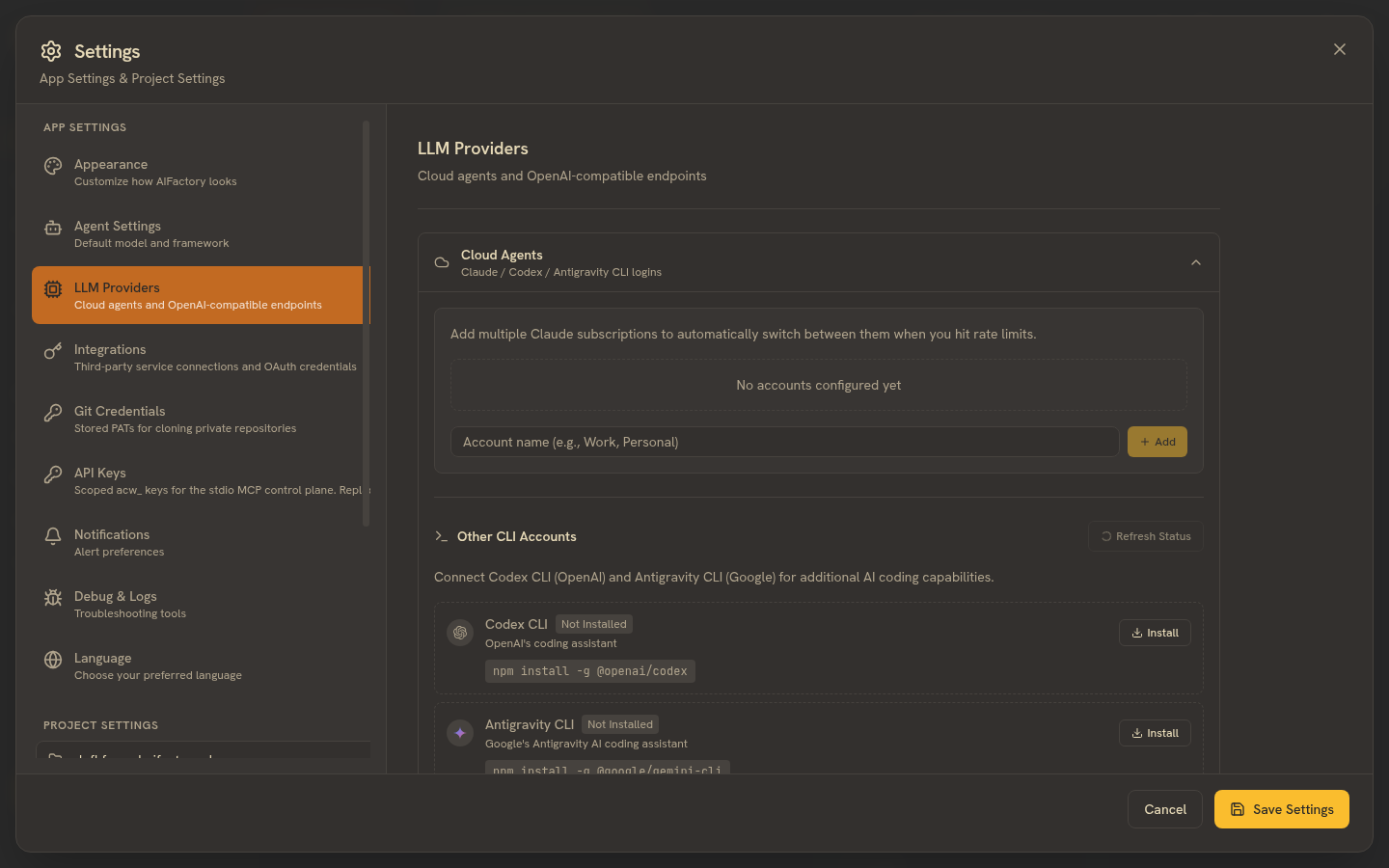
Settings carries appearance, the default agent profile and model, integrations, git credentials, scoped API keys, and more.
The Agent Settings pane sets the default model and agent framework, with presets for complex tasks, balanced work, and quick edits.
LLM Providers is where multi-provider lives: add multiple Claude subscriptions to auto-rotate on rate limits, connect Codex (OpenAI) and Antigravity (Google) CLIs, and point at OpenAI-compatible endpoints.
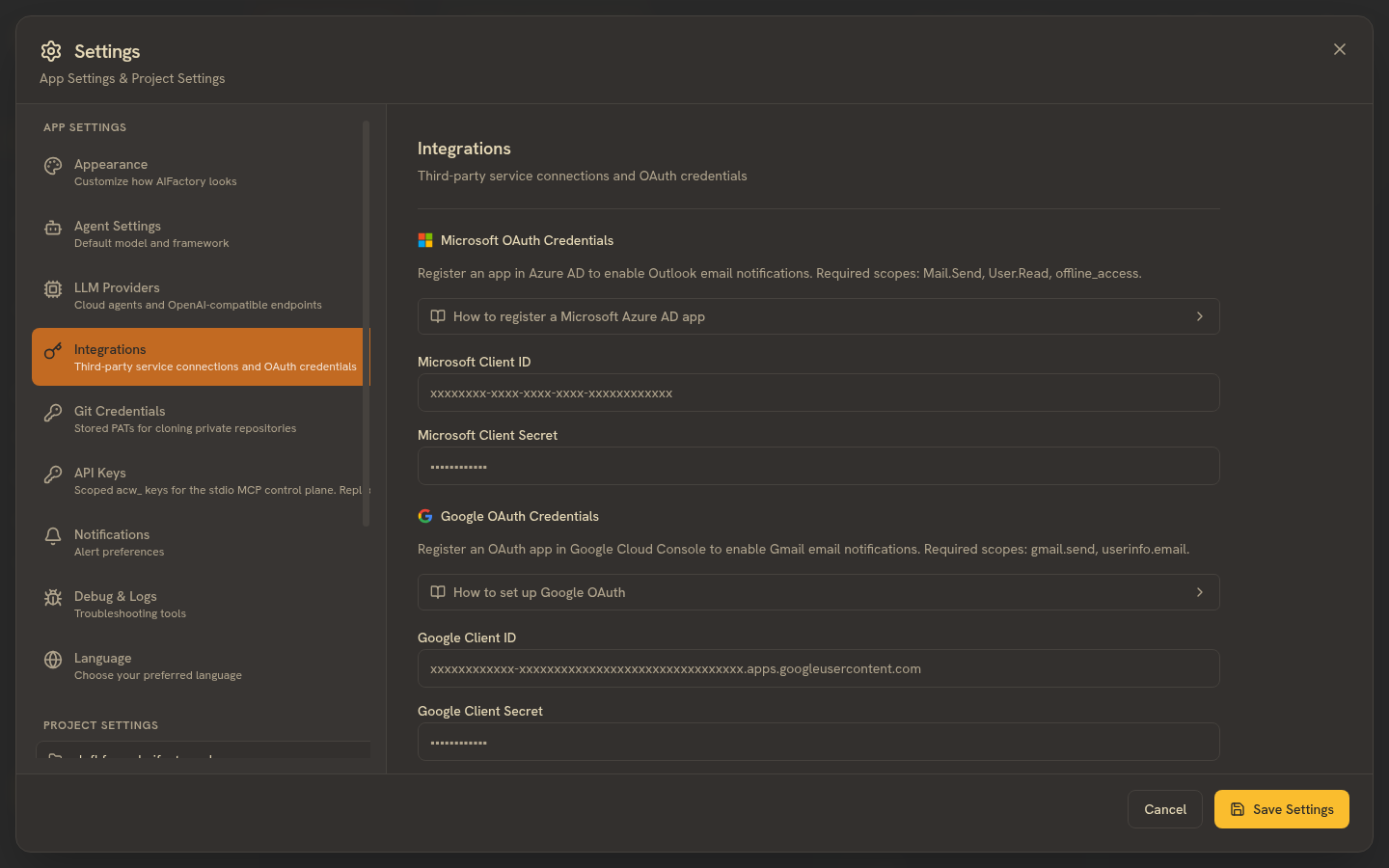
Integrations holds third-party service connections and OAuth credentials.